
FOR ANY QUERY
OFFICE NUMBER
+92 324 4498948
+92 301 4232009
mail us
info@awaisinternational.com
Location
Office # 915, 9th Floor, Al-Hafeez Executive, Block C3, Gulberg 3, Lahore, Punjab, Pakistan.
Here’s the thing about buying a graphics card — everyone online has a strong opinion, and half of them contradict each other. NVIDIA fans swear it’s the only sane choice. AMD fans will tell you you’re overpaying for a logo. Meanwhile you just want your games to run without your fans sounding like a jet engine taking off. So let’s skip the fanboy noise and get into what a graphics card actually does, how to check what’s already sitting inside your machine, and what’s worth paying for.
What Is a Graphics Card, Anyway?
Picture your CPU as the manager barking out instructions, and your graphics card as the artist actually painting the picture on screen — every pixel, every frame, all of it. That’s really the job of a GPU. It’s a chip built specifically to crunch visual data fast, and it takes that load off your processor so the two can work together instead of one waiting around for the other.
You’ll feel the difference most obviously in gaming, video editing, or 3D rendering. Try running any of that on a weak GPU and you’ll watch an otherwise powerful PC choke on something it really shouldn’t struggle with.
So How Does It Work, Exactly?
A GPU is basically thousands of tiny processing cores, all working at once, figuring out where light and color should land across your screen. It also comes with its own dedicated memory — VRAM — which holds textures so the card isn’t constantly borrowing from your system RAM. More cores, more VRAM, generally more detail at higher speeds. That’s the short version of why a gaming card costs so much more than the one quietly built into your office laptop.
Three Types of Graphics Cards You’ll Run Into
Integrated graphics live right inside the CPU. Nearly every budget laptop has this. It’s perfectly fine for browsing, Netflix, spreadsheets — but throw a modern game at it and things get ugly fast.
Dedicated graphics are a separate card entirely, with their own memory, their own cooling, their own slot. If you’re gaming seriously or editing footage, this is non-negotiable.
External GPUs (eGPUs) are the odd one out — you plug a box containing a full desktop-grade card into your laptop through Thunderbolt or USB-C. Not something most people need, but if you’ve got a slim laptop and occasionally want desktop-level power, it works.
NVIDIA or AMD Does It Actually Matter?
Both make great cards, honestly. It comes down to what you care about more.
NVIDIA generally leads on ray tracing and has DLSS, which most gamers agree is genuinely useful. Driver support is polished, and it’s usually the safer pick for streamers or editors. AMD, meanwhile, tends to undercut on price for similar performance, and its FSR upscaling tech has closed the gap a lot in the last couple of generations. If you’re chasing the newest bells and whistles, go NVIDIA. If you want the most performance for the least money, don’t write off AMD just because it’s not the “default” choice.
Which Graphics Card Is Best for Gaming, Really?
This depends far more on your monitor than people assume.
Gaming at 1080p? An entry-to-mid-range card will handle that without breaking a sweat — and honestly, most casual and even competitive gamers don’t need to go further. Bump up to 1440p and you’ll want more VRAM plus a stronger mid-range or upper-tier card to keep frame rates steady. And 4K? That’s flagship territory — you need serious cooling and VRAM to keep things smooth there.
For most people gaming in Pakistan, a solid mid-range card is genuinely the sweet spot. It runs popular titles well without the flagship price tag attached.
Laptop GPU vs Desktop GPU What's the Catch?
A laptop’s graphics card is essentially a scaled-down, more power-efficient version of its desktop counterpart. Here’s the part that trips people up though — it’s soldered onto the motherboard. You can’t just swap it out later like you can on a desktop. So if long-term upgradeability matters to you, desktops win, no contest. If portability is the priority, laptops make sense — you’re just paying a bit extra for that convenience.
How to Check Your Graphics Card in a Laptop
Forgotten what’s inside your machine? Here’s the fastest way to check:
Right-click your desktop, pick Display settings, scroll down to Advanced display settings, then click Display adapter properties. Your GPU’s name and model will be sitting right at the top.
Or, if Device Manager is more your speed: press Windows + X, click Device Manager, then expand Display adapters. Every GPU on your system shows up there.
How to Check the Graphics Card in Windows 10 Specifically
On Windows 10, there’s an even quicker way if you want a live view:
Press Ctrl + Shift + Esc to open Task Manager, click the Performance tab, then select GPU from the left-hand menu. You’ll see the card’s name, driver version, and real-time usage — genuinely handy when you’re troubleshooting a slowdown.
Graphic Card Price in Pakistan
Prices move around a fair bit depending on VRAM, brand, and where the card sits in the lineup. Roughly speaking:
Entry-level cards sit at the bottom of the price range and are meant for office work or light video playback — not gaming. Mid-range cards are where most home users land, handling 1080p and light 1440p without draining the wallet. High-end cards cost noticeably more but are built for serious 1440p/4K gaming and content creation. Gaming cards specifically — think NVIDIA’s RTX line or AMD’s Radeon RX series — stretch across a huge range, from budget-friendly entry cards all the way to expensive flagships. And workstation cards, aimed at CAD, rendering, and AI work, sit at a premium because of their specialized drivers and higher VRAM.
Since currency shifts and new launches move prices around constantly, it’s genuinely worth double-checking current rates with a trusted supplier before you buy anything.
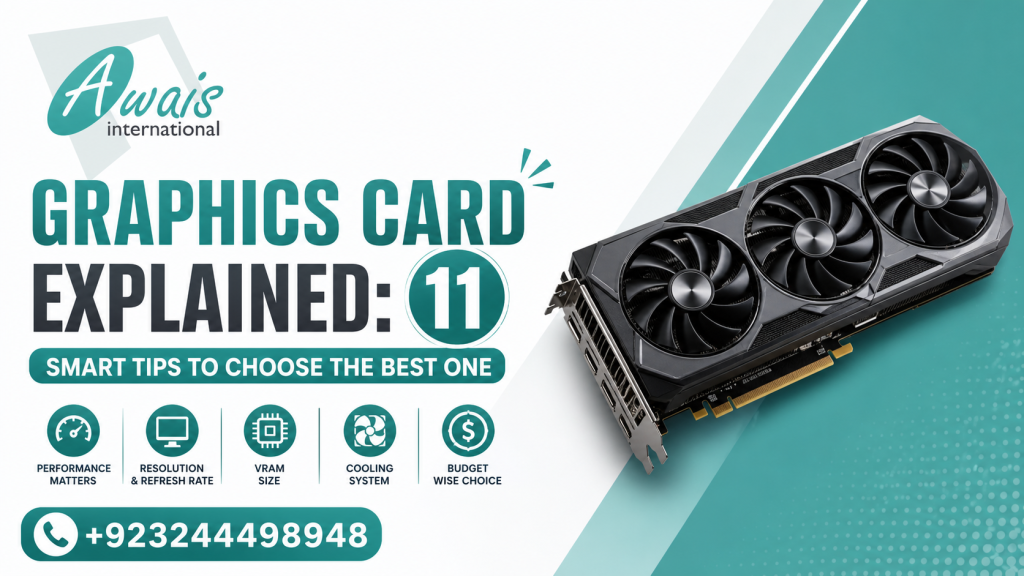
11 Tips for Choosing the Best Graphics Card
Set your budget before you even start browsing — it’s way too easy to get talked into more card than you need once the spec sheets start flying at you. Match the GPU to your actual monitor resolution; a 4K-ready card is wasted money on a 1080p screen. Pay attention to VRAM, since newer games are hungrier for it than they used to be (8GB is quickly becoming the baseline, not the luxury). Check your power supply before committing — high-end cards pull serious wattage and an underpowered PSU will leave you stuck. Measure your case too; some of the bigger cards genuinely won’t fit in compact builds.
Favor brands with a track record of solid driver support, since regular updates mean better stability down the line. Don’t skip over cooling design either — a quieter, better-cooled card just lasts longer. Think about your CPU as well; pairing a weak processor with a strong GPU creates a bottleneck nobody wants. Buy from authorized dealers so you actually get warranty coverage and avoid counterfeit cards, which are more common than people think. Compare real performance rather than just brand reputation — sometimes a lesser-known model quietly beats a bigger name at the same price. And if your budget allows, leave a little headroom for the future; a bit of extra power now saves you an earlier upgrade later.
Common Mistakes People Make Buying a Graphics Card
Judging a card purely by VRAM size while ignoring the architecture behind it is a big one. So is pairing an expensive GPU with an outdated CPU — you’ll never see the performance you paid for. Skipping the power supply math is another classic mistake that leads to instability down the line. Buying used cards without asking about mining history or physical wear is risky too. And forgetting to check case clearance and airflow before purchase is one of those small things that causes big headaches later.
Frequently Asked Questions
What is a graphics card actually used for?
It renders images, video, and animations on your screen — essential for gaming, editing, and anything visually heavy.
How do I know if my laptop has a dedicated GPU?
Check Device Manager under “Display adapters.” If you spot something like NVIDIA GeForce listed alongside the integrated graphics, you’ve got a dedicated card in there.
NVIDIA or AMD — which one should I actually pick?
Honestly, there’s no single right answer here. NVIDIA tends to lead on ray tracing and polish; AMD usually wins on value at a similar price.
Do I even need a dedicated graphics card?
Not really, if you’re just browsing or doing office work — integrated graphics handle that fine. A dedicated card only matters once you’re gaming, editing, or doing 3D work.
Can I upgrade my laptop’s graphics card later on?
Usually not — most laptop GPUs are soldered in for good. Desktops give you way more flexibility here.
Final Thoughts
At the end of the day, picking the right graphics card isn’t about chasing the biggest number printed on the box. It’s about knowing your budget, your resolution, and what you’ll actually be using the machine for. Nail those three things and everything else tends to sort itself out.
Ready to upgrade? Awais International has a solid range of laptops, desktops, and components across every budget. Worth a look too — their HP laptop price guide, the top laptops under 100K roundup, or an HP authorized partner in Lahore if you’d rather talk it through with someone. Building beyond gaming rigs? Their 3D printer guide is worth a browse as well.
Still torn on which card fits your setup? Reach out to Awais International’s team — they’ll point you toward something that actually matches your budget and what you’re trying to do with it.